Write your awesome label here.
Video tutorial
GRCA LMS Guide for Students
In the GRCA Learning Management System (LMS), you will experience virtual learning through an easy-to-use digital platform. This quick guide will help you get started and show you how to access your lessons efficiently.
Frequently asked questions
🌐 What is the GRCA LMS website?
You can access the GRCA Learning Management System at https://learning.grca.school/
❓ I forgot my email and password. What should I do?
No worries! Your class adviser is your go-to person for login details. Just ask them and they’ll help you out.
📌 Reminder: Your teacher is handling many students, so please be patient while waiting for a response.
🔐 Can I change my password?
Yes, you can! Just make sure to write it down somewhere safe like your notebook or phone. Think of your password as your personal responsibility. Keep it secure and memorable!
🚫 I can’t log in even though I’m using the correct email and password.
If this happens, let your class adviser know right away or use our Live Chat for quick support.
📧 Is the email address active?
No, it’s not. Your email is only used for login purposes.
📬 But good news, we’re considering making it active in the future!
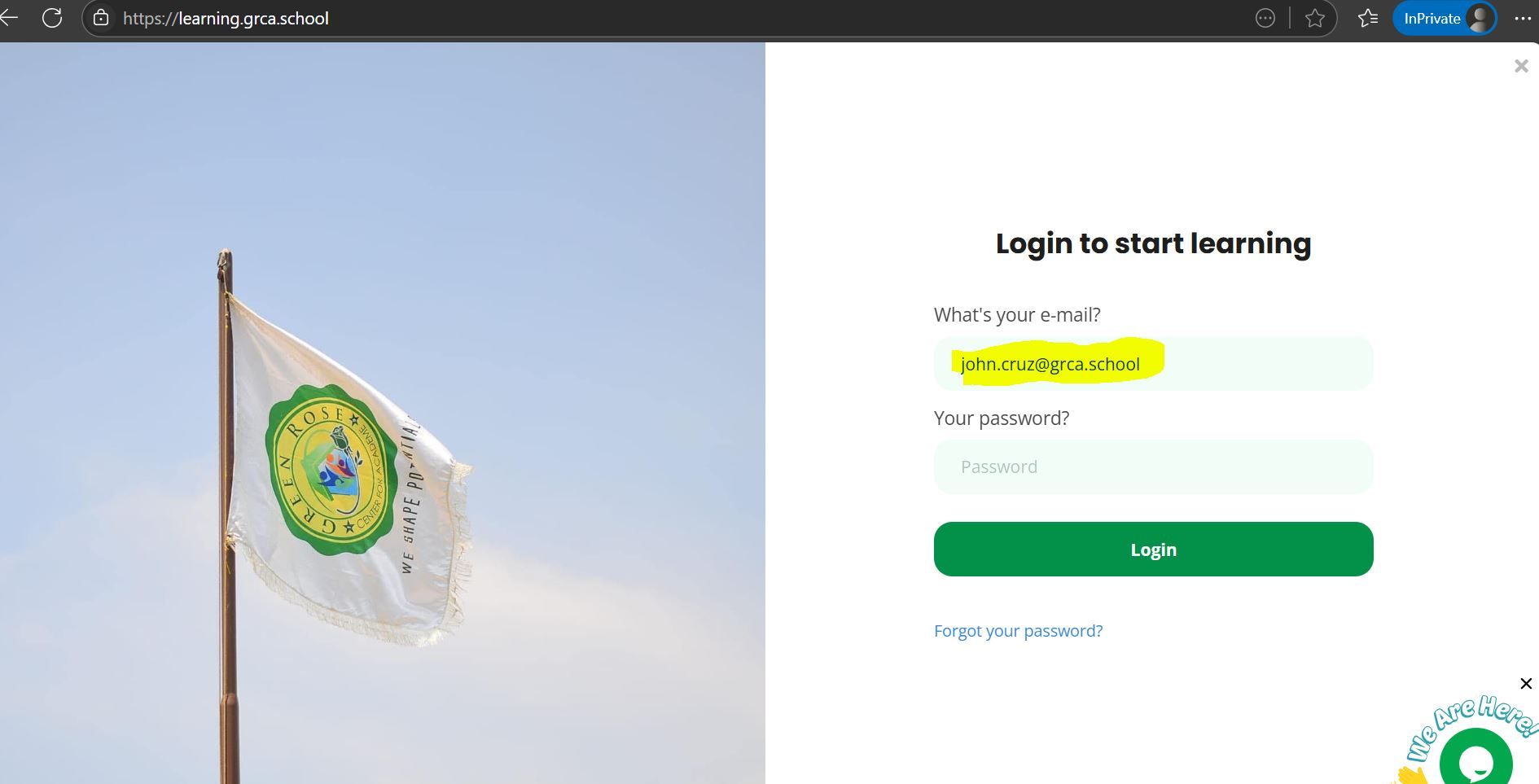
❌ Is the “Forgot Password” section functional?
Currently, it’s not functional. If you forget your password, please talk to your class adviser or subject teacher, or use the Live Chat for help.
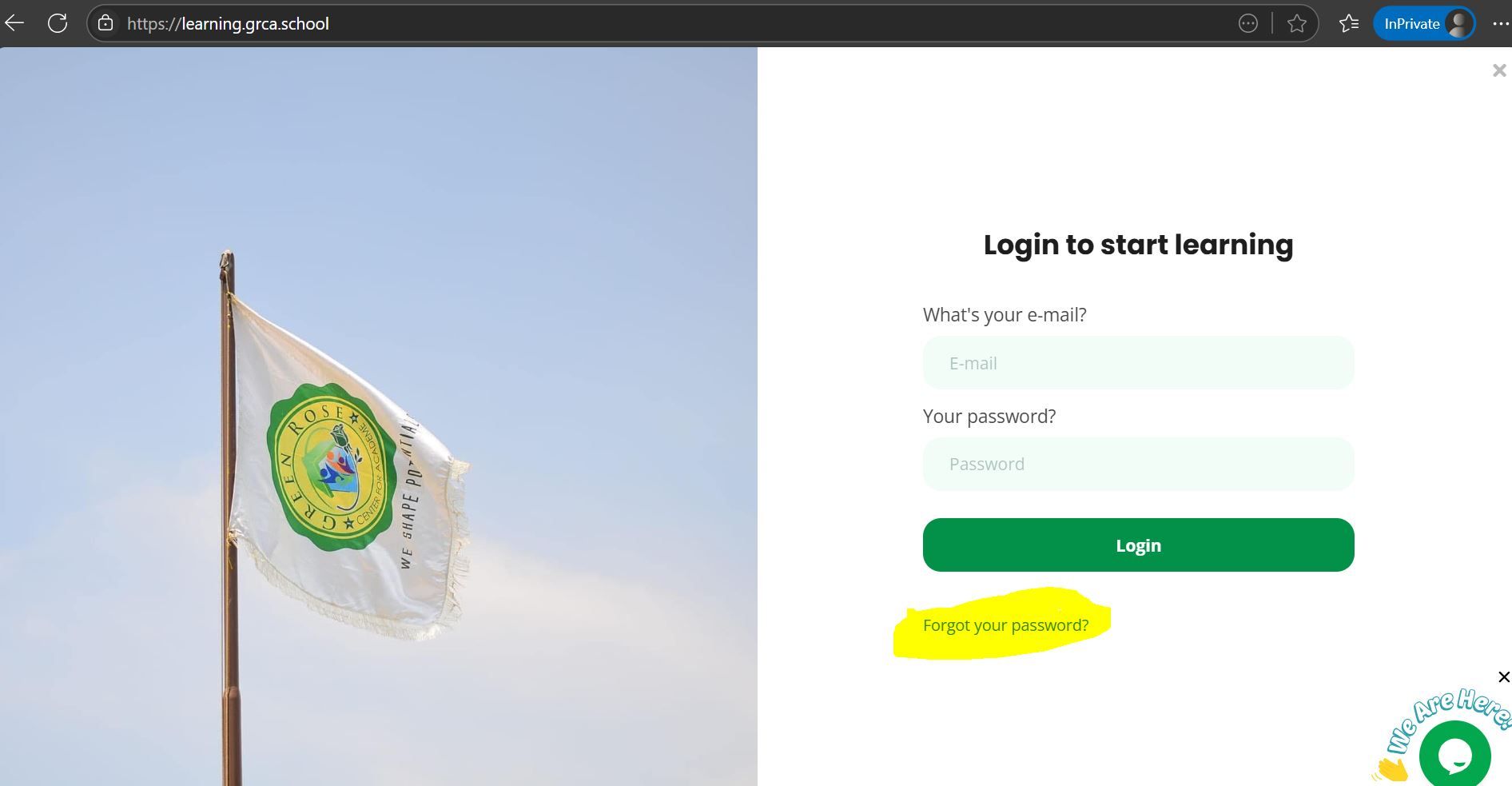
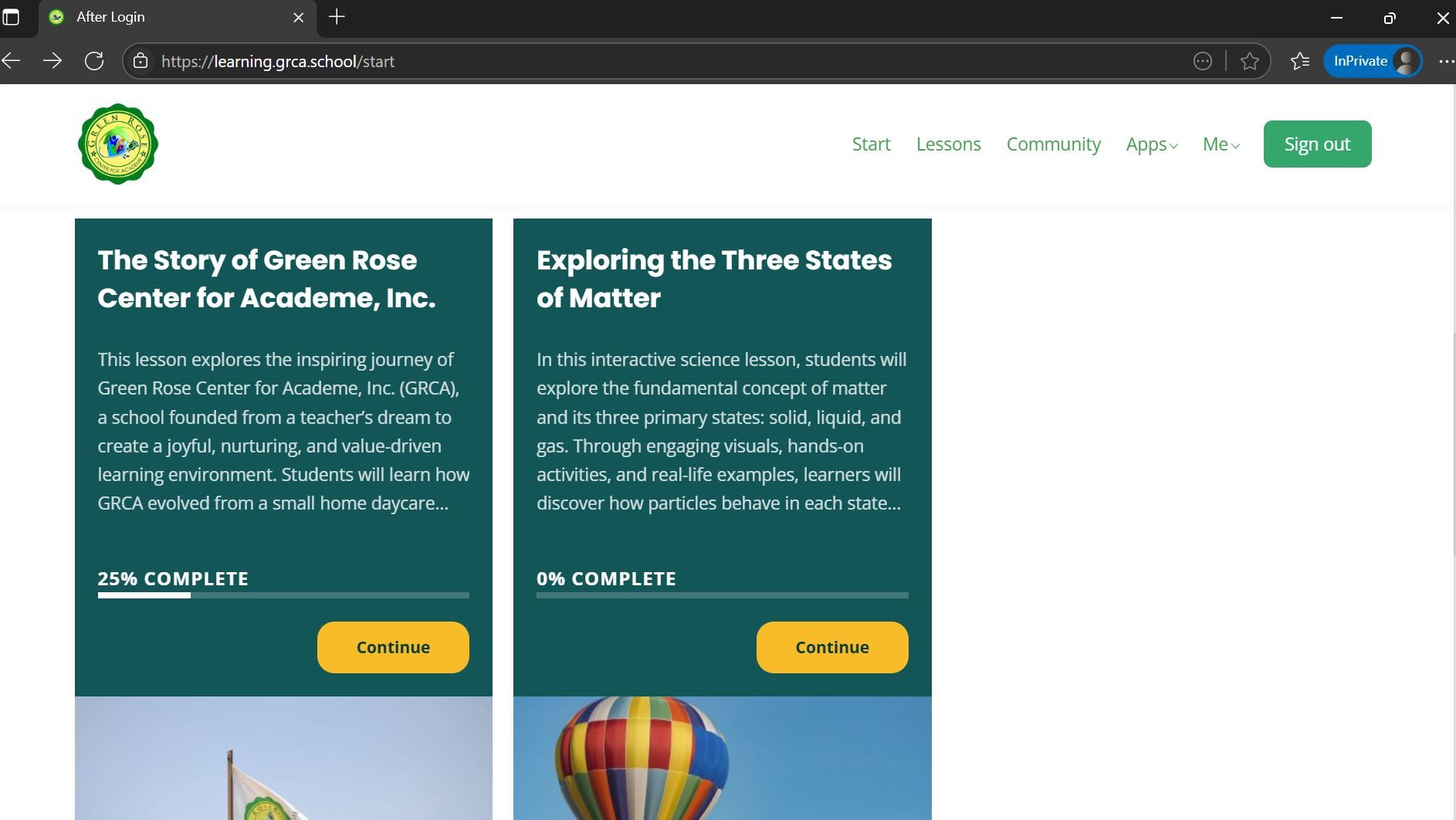
✅ How do I know I’ve completed a part of the lesson?
Look for a checkmark ✔️ next to the lesson part.
If you see a clock icon 🕒, it means your teacher is still reviewing your response.
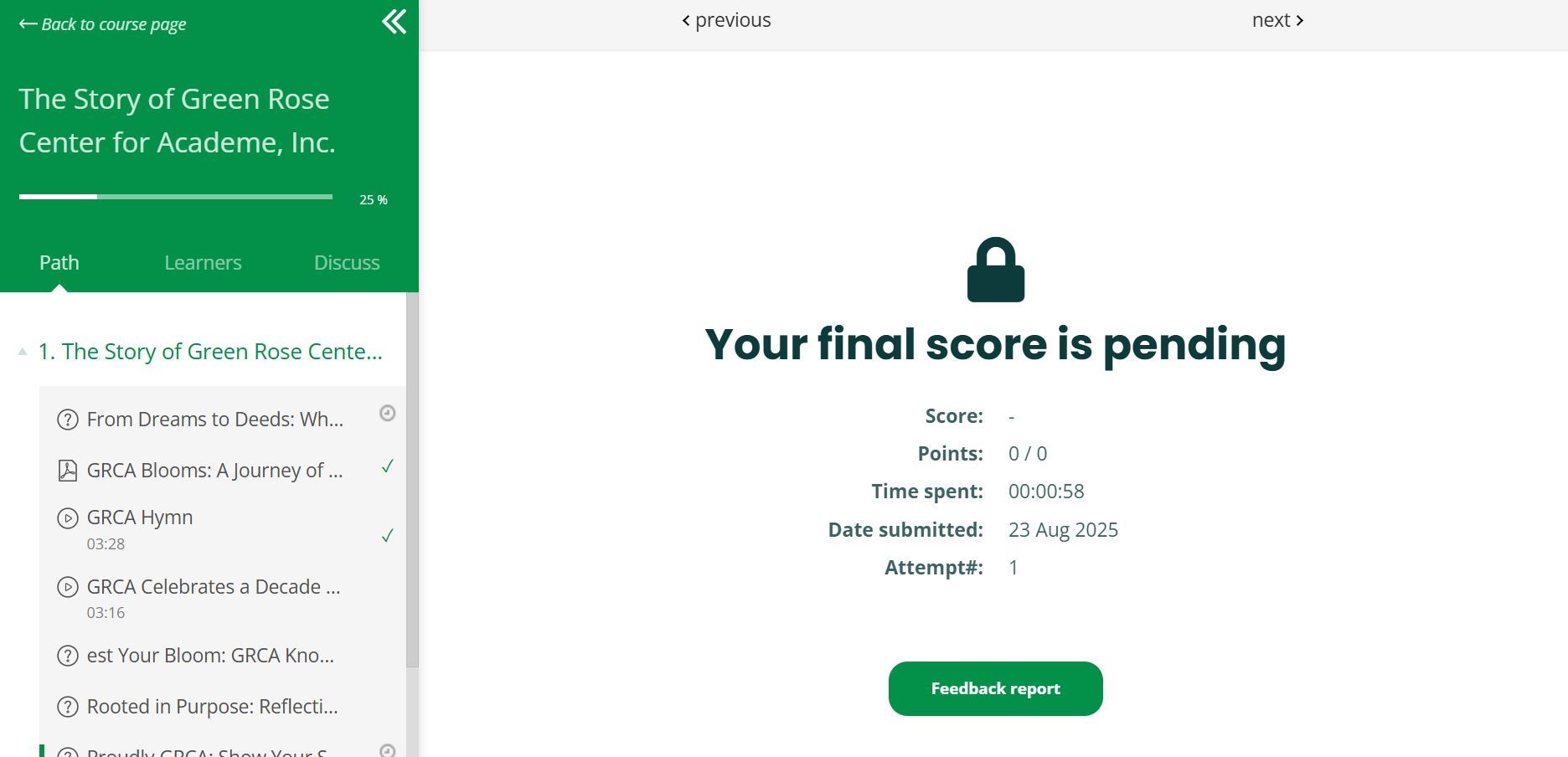
🎯 How can I tell if I’ve completed the whole lesson?
Your progress bar should show 100%. That means you’ve finished everything in that lesson!
🧠 Can I start any part of the lesson?
Technically, yes! But it’s highly recommended to start from the beginning so you can fully understand the concepts and not miss anything important.
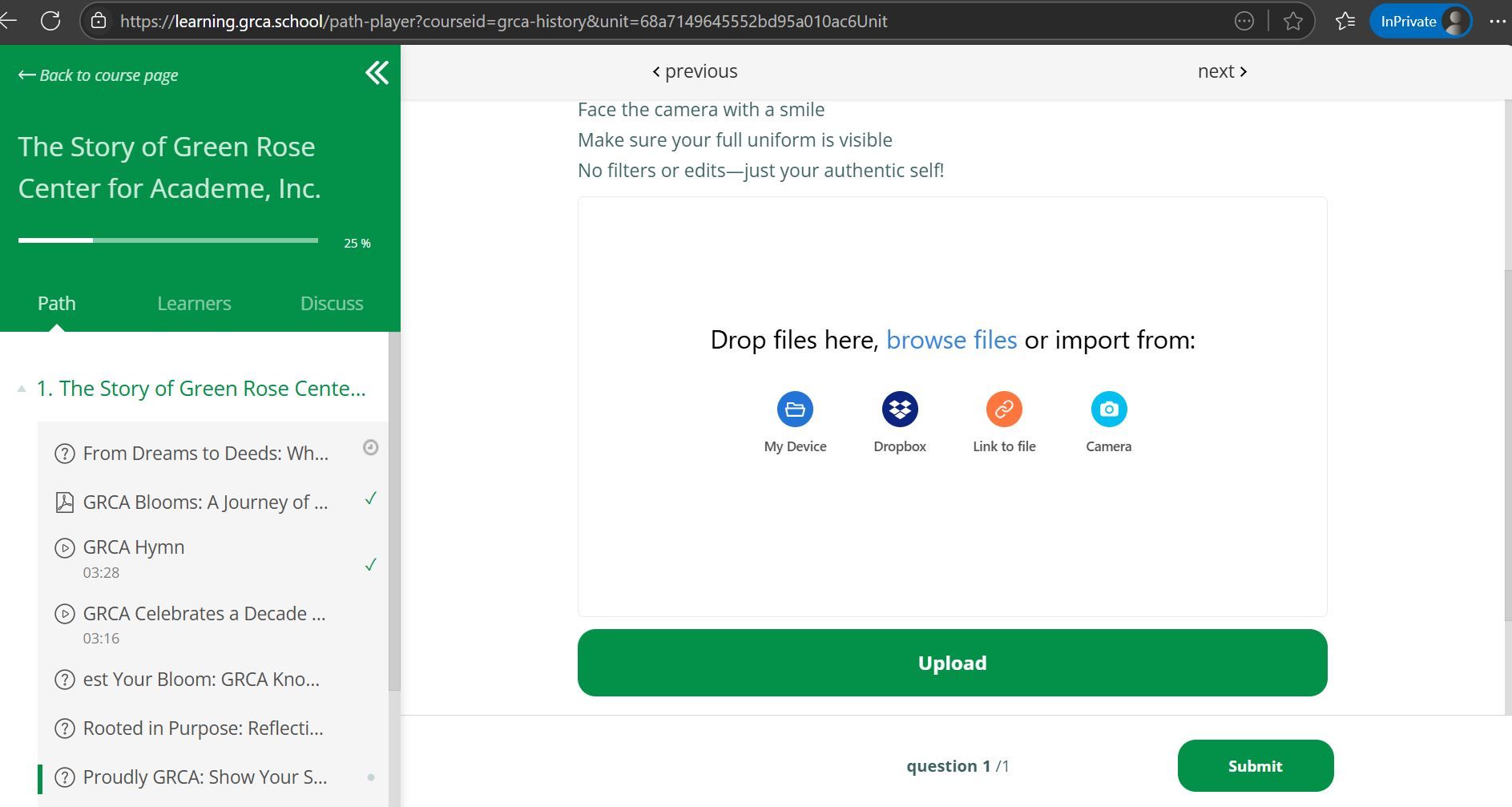
📎 I submitted the wrong file by mistake. Can I fix it?
You can’t edit a submitted file directly. But don’t panic, just inform your teacher. They’ll need to mark it from their side so you can resubmit.
Tip: Always double-check your file before hitting submit!
🕐 Is the GRCA Learning Helpdesk available 24/7?
Not 24/7, but we’re doing our best to support you as quickly as possible! You can also reach out to your class adviser or subject teacher for help.
Copyright © 2025